TikTok for Indie Games: A Posting Plan for a Small Studio
November 5, 2026
BORE: A Co-op Survival Horror Game About Crewing a Giant Drill
November 7, 2026
How to Set Up a Discord Server for Your Indie Game
A Discord server for your indie game takes an afternoon to set up properly: create it, turn on Community, give the team and the players separate roles, switch on AutoMod and build a short onboarding. Two settings are easy to miss. The invite link expires after 7 days by default. And discovery is on you: Discord’s help center says its Server Discovery experiment has ended, so plan for members to arrive through links you share yourself. Below is the setup we would follow, step by step, with Discord’s own help pages linked for each part.
Decide what the server is for
Write one sentence before you create a single channel. “A place to report bugs in the demo and hear about updates first” is a good one. “A community hub” is not, because it gives you no reason to say no to the twentieth channel. Start with a handful of channels and add one only when an existing channel gets crowded.
Feedback is a use Valve describes directly. In its Steam Playtest documentation, Valve says collecting feedback is up to you, and that it has seen a number of developers put a big feedback button on the main menu, leading to a Steam forum, a Discord channel, bug tracking software or their own website forums. If your server is where feedback goes, build it around that job.
Step 1: create the server
Press the Add a Server icon at the bottom of your server list, then choose Create My Own or start from a template. Give it the game’s name and an icon. Discord’s server creation guide (last updated May 2024) sets the minimum icon size at 128 x 128 pixels, and suggests cropping a larger image in multiples of 128, such as 256 or 512.
If you run more than one game, Server Templates copy categories, channels, roles and permissions from one server into a new one. Community channel types, meaning Forum, Announcement and Stage channels, are not included, so you will recreate those by hand.
Step 2: turn on Community
Community is a setting under Server Settings, and it is what gives you announcement channels, forum channels and Community Onboarding. Discord’s page on enabling a Community Server (last updated December 2023) lists what you need first:

Before Discord lets you enable Community
Four requirements
- Verification level: members need a verified email before they can send messages or DM anyone in the server.
- Explicit media filter: scan media from all members.
- A rules channel: clearly posted, so new members know what is allowed.
- A community updates channel: moderator-only, where Discord sends news for admins.
The server also has to follow Discord’s Community Guidelines.
The same page still mentions Server Discovery for servers above 1,000 members. That is out of date. The Server Discovery page, updated in February 2026, says the experiment has ended. Plan as if every member arrives through a link you posted.
Step 3: a channel layout for a game
This is the structure we would start with. Cut anything you will not keep alive.
- Start here: #rules, #announcements, #links (Steam page, press kit, socials).
- Community: #general and #screenshots. Add #looking-for-group only if the game is multiplayer.
- Feedback: a #bug-reports forum and a #suggestions forum.
- Playtest: a private channel for testers, visible only to a Playtester role.
- Team: a private mod channel for AutoMod alerts and Discord’s community updates.
Make #announcements an Announcement channel
An Announcement channel has a Follow button, so other servers, a creator’s server for example, can receive your posts in their own channel. Press Publish after posting to send it out. There is a rate limit of 10 publishes per hour, and @everyone and @here mentions do not carry over to following servers.
Make bug reports a Forum channel
In a normal chat channel, a bug report scrolls away within the hour. In a Forum channel, every report is its own post. You can write post guidelines (a template: build version, what happened, what you expected, steps to reproduce) and add tags such as Crash, Gameplay, Visual or Fixed. You can also make tags required before someone posts. Inactive posts move to Older Posts after 3 days by default. For bug reports, set that to 1 week so open issues stay in view.
Step 4: roles and permissions
Discord’s roles and permissions guide (updated July 2025) comes down to a few rules:
- Roles work top-down. A member can only act on members whose highest role sits below their own.
- Administrator grants every permission and bypasses all channel restrictions. Keep it to the people who own the game.
- Someone with Manage Roles can only hand out permissions they have themselves.
- New roles land at the bottom, just above @everyone, which is the template for every new role.
- Making a channel private removes View Channel from @everyone. You then add the roles that should see it.
For a game server, five roles cover most needs: Developer, Moderator, Playtester, Creator and Member. The Creator role is worth having from day one. When a streamer joins to ask about a key, you can give them a channel where the team answers them directly.
Step 5: verification and AutoMod
Discord’s verification levels (updated September 2025) run from None to Highest. Low requires a verified email. Medium adds a five-minute wait. High adds ten minutes as a member of your server. Highest also requires a verified phone number, and a verified phone number lets an account past every level. For a public game server, Medium or High is a sensible start.
Then set up AutoMod, under Server Settings. It is available to every server, and its help page was updated in June 2026.

AutoMod, the numbers that matter
Set these before you share the invite
- Commonly Flagged Words: three ready-made lists you switch on with one click. They work in English only.
- Custom Keyword rules: up to 1,000 terms per rule, 60 characters per term. Add * at the start or end of a word to catch variations.
- Block Mention Spam: cap the mentions per message, up to a maximum of 50.
- Block Spam Content: aimed at unsolicited ads and invite spam. English only, and Discord says it will not catch everything.
- Custom block message: up to 150 characters, shown only to the sender.
- Alerts: send them to a channel only moderators can see.
Members with Administrator or Manage Server are always exempt, so test your rules from a normal account. Rules can only be edited on desktop.
Step 6: onboarding and invites
Community Onboarding asks new members a few questions and gives them roles and channels from their answers. One question does most of the work for a game: “What brings you here?” with answers such as “I am playing the demo”, “I want to report bugs” and “I make videos or streams”. Each answer assigns a role. The help page (last updated March 2023) says you need at least 7 Default Channels, and at least 5 of them must let @everyone view and send messages, before you can turn it on.
Last, fix the invite. Invites 101 (last updated November 2023) says the invite panel shows a 7-day link by default. Once Community is on, edit it to never expire and to have no limit on uses before you put it on your Steam page, your trailer descriptions and your IndiePump.space press kit, which can list your Discord next to your other links. If you get raided, Server Settings, then Invites, lets you pause all invites. Delete an invite only if you mean it: Discord cannot recreate the same code.
Running it after launch day
A server needs someone in it every day, at least for the first months. Answer and tag bug reports, then close the loop when a fix ships. The rules we follow for outreach apply here too, because they came from real bans and throttles: never post the same text in two places, read a community’s rules before posting there, treat a rate limit as a reason to stop rather than retry, and use the channel a person asks you to use. If you would rather hand the daily work to someone, our social media management service covers it.
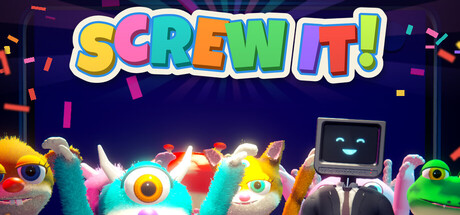
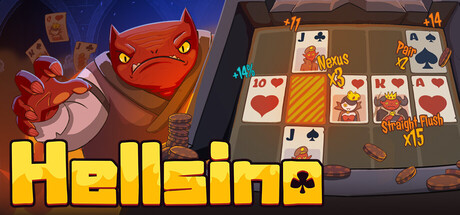
These three games on IndiePump.space list a Discord server on their press kit. Screw It! is a voice party game for 4 to 8 players set inside a retro TV show, the kind of game whose players need a place to find each other. Alchemist: Journey of the Soul, a first-person co-op adventure for up to four players, released on Steam in May 2026, and Hellsino is a poker roguelike deckbuilder listed for Q1 2027.
Games on IndiePump.space with a Discord on the press kit
 Coming soon

 Released
 Demo available

For developers
Put your game in front of 300+ content creators
Every game on IndiePump.space gets a free press kit page where streamers and writers request review keys, and you decide who gets one.

Follow IndiePump