
Steam Capsule Art: Sizes, Rules and What Gets Clicks
October 29, 2026
Steam Demo Guide: Building a Demo That Turns Players Into Wishlists
October 31, 2026
Steam Tags Explained: How to Choose Tags for Your Indie Game
Steam requires at least 5 tags on your game before launch and recommends adding up to 20. Only the top 20 count: they decide which tag pages your game can appear on and which games Steam treats as similar to yours. Players and Steam moderators add tags too, so the list moves after launch. The short version of Valve’s own advice is to lead with your most specific sub-genre, keep the first 15 in order of relevance, and remove anything that does not describe your game. Below is how tags work according to the Steamworks tags documentation, and how to choose yours.
Who applies tags
Three groups can tag a game on Steam: the developer, players with non-limited accounts, and Steam moderators. You set yours in the Tag Wizard, under Edit Store Page, Basic Info, Tags. The account doing it needs the “Edit App Metadata” and “Publish App Changes to Steam” permissions. Tag changes publish separately from store page changes, so you can fix tags without pushing a half-finished description live.
A demo inherits the tags of its base game. Tags are translated into each Steam language, and their order stays the same in every language.

The numbers that matter
- 5: the minimum before launch. The first five also describe your game on the store page, so they should give a clear picture on their own.
- 15: some store filters prioritize the first 15 tags, so sort them by relevance.
- 20: Valve recommends up to 20. Only the top 20 are visible and used for visibility, even though more can be applied.
What your top 20 tags decide
Tag pages and browse views
The top 20 tags decide which tag pages and similar browse views your game can appear on. A tag that is missing from your top 20 is a page your game cannot show up on.
Recommendations and More Like This
Steam also uses the top 20 to decide which games are similar to yours. Here Valve says “the order is less important than the overlap between multiple tags.” Less common tags carry more weight than very common ones. Valve’s example: a tag like “Action” does little to match you with similar games, while “Party-Based RPG” does a lot. The same comparison feeds the More Like This section, both for where your game appears and for which games appear on your page.
Search filters
Steam search shows a list of tags beside the results that players use to narrow them. Some store filters prioritize your first 15 tags, which is why Valve asks you to sort them by relevance.
Choosing tags, step by step
1. Start with the most specific genre
The Tag Wizard sorts genres into super-genre, genre and sub-genre, and Valve gives the sub-genre special attention. Its example is Super Meat Boy: Action, then Platformer, then Precision Platformer. Since less common tags weigh more in recommendations, the sub-genre usually does more work than the genre above it.
2. Add how it looks
Visual properties cover dimensions, camera perspective and visual style: 2D or 3D, top-down or first-person, pixel graphics or hand-drawn. Players filter on these, so a wrong one puts your game in front of people looking for something else.
3. Add themes and moods
Themes such as Sci-Fi and moods such as Relaxing. Pick the ones a player would use to describe the game to a friend, and skip the ones that only fit one level.
4. Add features
Gameplay mechanics, design ingredients and player activities. Tag what the game actually has today. A feature that is planned for a later update is a promise, and a tag is no place for it.
5. Check against similar games
Valve suggests looking at the tags on similar games and browsing popular tags before you decide. Open the store pages of five games your players also buy, and compare their top tags with yours. Overlap is what places you next to them.
6. Order, then let the wizard suggest
The Tag Wizard has a Suggest Prioritization feature, a simple algorithm that moves high-information tags such as sub-genres up and low-information tags such as “Indie” or “Singleplayer” down. Valve calls it a starting point and says it is not guaranteed to be accurate, so read the result before you publish.
After launch: when players tag your game
“As customers add more tags, the weight for those tags will increase,” the documentation says, and player tags mix with yours over time. That is useful when players see something you missed and a problem when they add a tag that misleads. You can remove unwanted or inaccurate tags at any time, either in the Tag Wizard or on the store page: click the plus beside the tags next to the screenshots, hover over a tag and click the flag icon. Valve’s own examples are “family friendly” on a horror game and “2D” on a 3D game.

A habit worth keeping
Recheck your tags once a month
Open your store page after launch, after each major update and after any festival. Compare the order players see with the order you set. If a generic tag has climbed into the top five, or a tag you never chose has appeared, fix it the same day, and write down what changed so you can match it against your traffic report.
Mistakes that cost visibility
- Generic tags at the top. Valve calls “Indie” and “Singleplayer” low-information tags, and the wizard pushes them down for that reason.
- Tags for what the trailer suggests, not for what the game is. A player who arrives through the wrong tag leaves, and the tag slot went to the wrong audience.
- Tags that disagree with the capsule. If the art says cozy farming and the first tag says Souls-like, one of them is wrong. Our guide to Steam capsule art covers the image side.
- Setting tags once and never again. Player tags shift the weights. A list you set a year ago may not be the order Steam is using now.
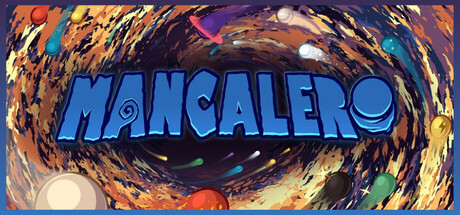
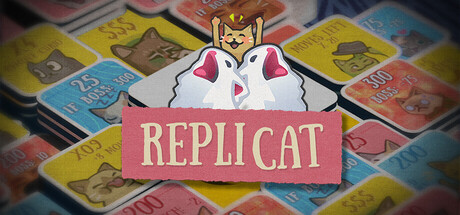
Mancalero, Replicat and Rogue Tempo all carry Roguelike Deckbuilder in their Steam tags, and each one has a tag the other two lack: Board Game, Cats and Music.
Three roguelike deckbuilders, three different tags
 Demo available
 Released

How IndiePump can help
For help with the store page as a whole, see our Steam page setup service. For the rest of the page, read our guide on how to optimize your Steam page to maximize wishlists, or talk to us about your game.

For developers
Put your game in front of 300+ content creators
Every game on IndiePump.space gets a free press kit page where streamers and writers request review keys, and you decide who gets one.

Follow IndiePump